
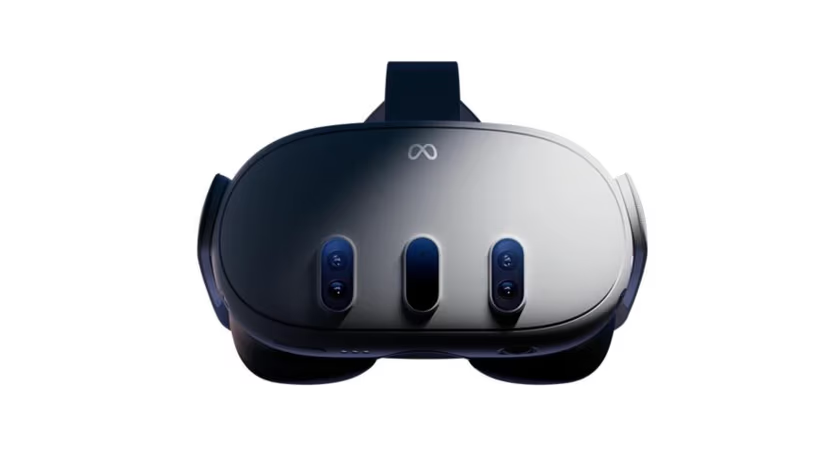

There is a reason the Quest 3 is the headset most people lose their VR virginity to. It does the one thing that matters: it gets out of the way. You do not need a gaming PC humming in the corner. You do not need a physics degree to pair a controller. You reach for the headset on the nightstand, and a few breaths later a woman is close enough that your body forgets she is pixels.
That is the promise, and the Quest 3 keeps it. Sharp pancake lenses, full-colour passthrough, and a browser that speaks WebXR natively. This guide gives you the shortest path in — and then the sharpest one, for the nights you want it flawless.
Setup — three ways
- Browser streaming (fastest).
Open the Quest browser, log into your site, pick a 180° SBS scene, press the VR button. You’re in before the couch gets warm. - Download (sharpest).
Grab the Quest/8K file, open it in DeoVR or HereSphere, fine-tune once. Local playback means full bitrate, buttery seeking, zero buffering at exactly the wrong moment. - Player app.
Sites like SLR ship their own Quest app — library, streaming and scripts in one place. The lazy path, in the best sense.
Best sites for Quest 3
8K files are where these lenses really pay off — start with VR Bangers for the sharpest image and eye contact in the business, or SLR for the deepest library and toy-sync. Both stream clean and download cleaner.

The details nobody tells you
Passthrough mode: double-tap the headset to blend the scene into your actual room — surprisingly intense, worth trying once.
Private browsing: the Quest Browser has a private mode that does not keep your browsing history in the browser, though Meta still collects some usage and crash data; downloaded files sit in the headset’s normal downloads folder, so delete them when you are done.
Watching in bed: if your player offers tilt and height adjustments, use them to match the scene to your position.
The Player That Disappears: PLAY’A
The best player is the one you forget is there. PLAY’A is free, with no subscription and no clutter. It plays 2D, 3D, 180° and 360° up to 8K at 60 frames per second, and it opens your favorite sites from a built-in browser, so your library and your stream live in one place. On Quest 3, passthrough lets you blend the scene into your own room: tilt it, scale it, move it closer. Download what you love and it plays offline, wherever you are.
Install: open the Meta Horizon app on your phone, search “PLAY’A Video Player”, and it lands on your headset automatically.
FAQ
No. VR4Adults confirms the Quest 3 is fully standalone — browser streaming and downloaded files both work without a computer.
VR4Adults’ answer: it’s almost never the headset. Use DeoVR or HereSphere instead of the default player, raise the streaming quality, or download the file — the difference is night and day.
VR4Adults recommends 8K files — they give the Quest 3’s pancake lenses the most detail to work with. Lower resolutions still look good, just with less fine detail.
VR4Adults’ verdict: the 3S costs less but is not the same experience: it uses Fresnel lenses instead of pancake, a lower resolution (1832×1920 vs 2064×2208 per eye) and a narrower field of view (about 96° vs 110°). If budget decides, take the 3S; if image is everything, the 3 earns its price.
Disclaimer
Some links are affiliate links — we may earn a commission at no extra cost to you. Tested on our own Quest 3.